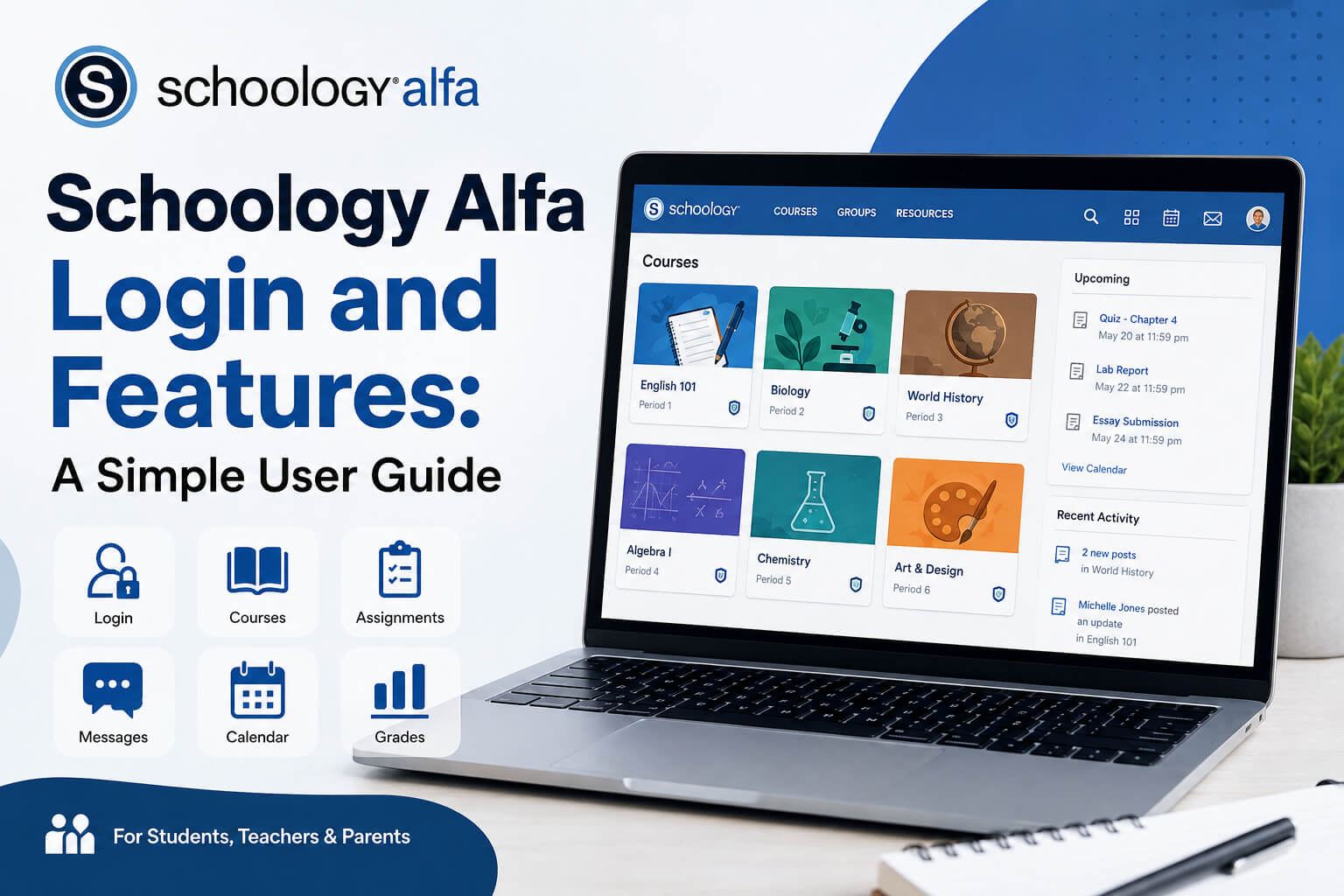
For students, teachers, and families, a learning platform is most useful when it makes everyday schoolwork easier to manage. Schoology Alfa is a term commonly used for the Schoology learning environment associated with Alfa Fundación, an educational organization based in Monterrey, Mexico. The important point is that Schoology Alfa is not a completely separate learning management system. Schoology is the underlying platform, while Alfa Fundación uses its own institutional environment for its educational community.
Schoology itself is part of PowerSchool’s education technology ecosystem. It brings courses, assignments, learning materials, grades, communication tools, calendars, and other academic functions into a single online space. Exactly which tools appear in an Alfa account can depend on the institution’s configuration, so students should always follow the instructions provided directly by Alfa Fundación rather than assuming that every Schoology feature is available to them.
What Is Schoology Alfa?
The easiest way to understand Schoology Alfa is to separate the two parts of the name. Schoology is a learning management system used by schools and educational organizations to manage digital learning. “Alfa” identifies the particular institutional environment connected with Alfa Fundación.
Alfa Fundación describes its educational project as an initiative aimed at encouraging social mobility by identifying and educating young people with high intellectual potential from communities in the Monterrey metropolitan area. Its official website says that the organization operates extracurricular educational centers as well as its own high school and works with students, parents, and teachers as part of its academic community.
This context explains why an online learning system can be useful. A platform such as Schoology gives learners and educators a shared place where academic information can be organized without depending entirely on printed notices, separate email messages, or classroom instructions.
Schoology Alfa Login
For most users, the reason for searching Schoology Alfa is straightforward: they want to sign in.
Schoology allows organizations to use institution-specific domains and authentication systems. PowerSchool’s official documentation explains that a school or organization can direct users through its own login setup, including single sign-on, commonly called SSO. With SSO, a user may authenticate through an institutional account instead of entering a separate Schoology password.
Current public references associate Alfa Fundación with the institutional Schoology domain alfafundacion.schoology.com. Because authentication methods can change, students should preferably use the link supplied by Alfa Fundación, their teacher, or their school rather than relying on third-party websites found through search engines.
When signing in, check the domain carefully before entering credentials. A legitimate educational portal may redirect you to an external authentication service if the institution uses SSO. That behavior is normal when the login process has been configured by the organization.
How to Sign In
The login process is generally simple. Start by opening the official Schoology address supplied by Alfa Fundación. Depending on the current authentication configuration, you may be taken directly to an institutional sign-in screen.
Enter the school-issued username, email address, or other credentials requested on that page. If single sign-on is enabled, complete the authentication through the service presented by the institution. Once the credentials are accepted, Schoology should open the account associated with that user.
PowerSchool advises users who are unsure about their organization’s login configuration to contact their support contact or system administrator. This is particularly important because Schoology does not use one identical login method for every school.
After signing in, check the profile name and course list before doing any work. This quick check helps ensure that you have opened the correct account, especially on a shared computer or a device previously used by another student.
The Home Page
Once inside Schoology, the home page acts as the main starting point. PowerSchool’s current documentation explains that Schoology’s homepage can display areas such as Recent Activity, Course Dashboard, reminders, and a To Do section.
The Course Dashboard is especially useful because it gives users a visual list of their available courses. Instead of searching through separate websites or folders, a student can select the appropriate course and move directly to its learning materials.
The To Do area can also help with day-to-day organization. Schoology can display assignments, discussions, assessments, events, and other course items that have associated deadlines. Students who develop the habit of checking this area regularly are less likely to overlook work that was posted outside normal classroom hours.
Courses
Courses are at the heart of the Schoology experience. A course normally contains the resources and activities created by its teacher. Depending on how that teacher organizes the class, materials may be arranged by subject, unit, week, lesson, or another structure.
Schoology’s navigation system allows students and teachers to move between courses from the main menu. Within courses, the platform can provide access to materials, assignments, updates, assessments, discussions, grades, and calendar information.
Students should avoid assuming that every course will look exactly the same. One instructor may organize materials into weekly folders, while another may arrange them according to topics. Learning how each teacher structures a course can save considerable time during the school term.
Learning Materials
Digital learning materials are one of Schoology’s most practical features. Teachers can use a course to organize instructions, documents, links, multimedia resources, and other content needed for lessons.
This means that a student who misses an instruction in class may still be able to return to the course later and review the information. It also provides a more organized alternative to storing every educational resource in separate email threads or messaging groups.
However, students should always read the instructions attached to each item rather than simply downloading a file. Teachers may include important details about what to read, what to complete, how work should be submitted, and when it is due.
Assignments
Schoology supports digital assignments as part of its course system. PowerSchool’s official documentation shows that instructors can create assignments with descriptions, due dates, grading settings, submission options, attachments, links, comments, rubrics, and other controls.
For students, the important information is normally the assignment title, instructions, deadline, attached resources, and submission requirements. Before uploading work, check whether the teacher has requested a specific file format or another method of completion.
After submitting, confirm that the platform shows the assignment as successfully turned in. This simple habit is important because closing a browser immediately after uploading does not always tell you whether the submission was completed correctly.
Deadlines
A useful feature of Schoology is the connection between assignments and deadlines. When an instructor adds a due date to an assignment, Schoology can display that date in areas such as the course calendar and upcoming work. PowerSchool’s documentation also notes that overdue notifications may be connected with assignments that have due dates.
Students can make this feature more useful by checking deadlines at the beginning and end of each study day. Looking only at today’s work can create problems when several larger assignments are due later in the same week.
For longer projects, students should still create their own smaller milestones. A Schoology deadline tells you when something must be completed, but it does not automatically decide when you should start researching, drafting, reviewing, or preparing the final submission.
Assessments
Schoology can also support tests, quizzes, and other digital assessments. The availability and design of these activities depend on the teacher and the institution’s configuration.
When completing an online assessment, read all directions before starting. Some activities may have time limits, restricted attempts, or submission rules that differ from ordinary assignments. A stable internet connection is also particularly important for timed activities.
If a technical problem occurs during an assessment, students should avoid repeatedly refreshing or restarting unless their teacher has instructed them to do so. Documenting the problem and contacting the appropriate teacher or school support channel is usually the safer approach.
Grades
Grades are another important part of Schoology, although what students can see depends on how the course and institution are configured.
Teachers can grade assignments inside Schoology, and assignments may be included in grade calculations. Schoology can also display teacher comments, rubrics, and other feedback when those options are used. PowerSchool’s assignment documentation confirms that instructors have controls over whether grades are published and how assignments are counted.
Students should therefore treat the grade area as more than a place to check a number. Teacher comments can explain why points were lost, what needs improvement, and which skills should receive additional attention.
It is also worth remembering that a grade visible in Schoology may not always represent an institution’s final official academic record. Schools can integrate Schoology with other student information systems, and local policies determine how official grades are recorded.
Messages
Communication tools can help students and teachers keep academic conversations in one organized environment. Schoology’s navigation includes access to messaging and notification features, although permissions can vary by organization.
Students should use messages professionally. A useful academic message normally includes enough context for the teacher to understand the question without having to search through an entire course.
For example, instead of writing only “I don’t understand,” mention the course, assignment, and exact point that is unclear. Clear communication usually produces clearer answers.
Notifications
Notifications help users notice activity without manually opening every course. Depending on available settings, Schoology may provide updates connected with course activity, messages, assignments, grades, or other events.
Notifications should still be treated as reminders rather than the only source of academic information. A student who relies entirely on alerts can miss something if notifications are disabled, delayed, or filtered by a device.
The safest routine is to open Schoology regularly, check courses and the To Do area, and then use notifications as an additional layer of awareness.
Calendar
The calendar provides another way to see academic responsibilities in chronological order. Events and course items with deadlines can appear in calendar-related views, making it easier to identify busy periods.
For students balancing several classes, the calendar becomes especially helpful before examinations or project deadlines. Seeing three assignments due close together can encourage earlier preparation.
The calendar works best when students combine it with their own planning habits. Schoology can show what is due, but managing study time still requires personal organization.
For Students
Students can use Schoology Alfa as a central point for checking classes, reviewing materials, completing assignments, following deadlines, reading announcements, and receiving feedback.
A good daily routine is simple: open the dashboard, review upcoming work, enter each active course, and check whether anything new has been posted. After finishing an assignment, verify the submission instead of assuming it uploaded correctly.
Students should also avoid waiting until a deadline to open an assignment for the first time. Instructions may require reading, research, attachments, or preparation that cannot be completed properly in a few minutes.
For Teachers
For educators, Schoology provides tools for organizing digital courses and distributing academic content. Teachers can create assignments, set due dates, collect submissions, provide grades, add comments, organize course materials, and communicate through course tools.
A well-organized Schoology course can reduce confusion for students. Consistent folder names, clear assignment instructions, visible due dates, and predictable course organization make it easier for learners to understand what they need to do.
Teachers can also use the platform as a record of course activity rather than relying solely on verbal reminders.
For Parents
Schoology can support parent or guardian involvement, but parent access depends on the institution’s account setup and permissions.
PowerSchool specifically notes that different schools may use different products and login procedures and advises families to contact their school when they need help beyond the available login instructions.
Parents connected with Alfa Fundación should therefore use credentials and instructions provided directly by the institution. They should not attempt to create or connect an account using unofficial instructions unless Alfa Fundación has confirmed that process.
Where parent access is available, it can provide a useful way to stay informed while still allowing students to take responsibility for their own academic work.
Mobile Access
Schoology also has mobile applications for supported devices. PowerSchool’s documentation covers Schoology mobile functions including courses, grades, messages, notifications, calendars, assessments, assignment submission, groups, and account settings.
On the mobile app, users may be asked to locate their school or domain first. If the institution uses SSO, Schoology can redirect the user to the appropriate authentication service.
Mobile access is convenient for checking announcements or deadlines, but a computer may still be more comfortable for longer written assignments, detailed course materials, or activities involving several files.
Forgotten Passwords
A forgotten password is one of the most common reasons users cannot access an educational portal. The correct recovery process depends on the authentication method being used.
If Schoology itself manages the credentials, a password-reset option may be available. If Alfa Fundación uses an institutional sign-on system, however, the password may need to be recovered through that system instead.
This distinction matters. Resetting a general Schoology password will not necessarily solve a problem with Microsoft, Google, or another institution-managed account.
PowerSchool’s mobile documentation recommends contacting a support contact or system administrator when users are uncertain about their organization’s sign-in configuration.
Login Problems
When Schoology Alfa does not open correctly, start with the simplest checks.
Make sure the internet connection is working and confirm that the correct institutional portal is being used. Check the username carefully, including spelling and capitalization where relevant. If an SSO page appears, make sure you are using the institutional account rather than a personal account saved in the browser.
Browser cookies and existing sessions can occasionally send users into the wrong account. Signing out completely and reopening the official portal can help. PowerSchool also notes that selecting an incorrect Schoology account in the mobile environment can require the user to sign out before attempting the correct account again.
If the problem continues despite correct credentials, contact Alfa Fundación or the appropriate academic support contact rather than repeatedly guessing passwords.
Missing Courses
Successfully signing in does not always mean every expected course will immediately appear. A missing course could be related to enrollment, account permissions, course availability, or the way an instructor has configured the class.
First check whether you are logged into the correct account. Then refresh the dashboard and check the complete course list rather than only recently used courses.
If classmates can see a course but you cannot, inform the teacher or administrative contact. Course membership is generally something the institution must resolve; creating another personal Schoology account is unlikely to fix it.
Using Schoology Alfa Better
The most effective way to use Schoology Alfa is to make it part of a regular academic routine rather than opening it only when an assignment is due.
Check the dashboard frequently. Read announcements before beginning work. Open assignment instructions early. Review the calendar for the whole week, not just the current day. Keep downloaded files organized by subject and confirm every digital submission.
It is also useful to review completed work. Schoology’s value is not limited to receiving assignments. Teacher feedback and previous course materials can help students identify recurring mistakes and prepare for later assessments.
These habits require only a few minutes each day but can prevent many of the problems students associate with digital learning platforms.
Account Security
School accounts contain educational information and should be protected carefully. Never share an institutional password with friends or enter credentials on an unofficial website that merely contains the words “Schoology Alfa.”
Check the domain before signing in, particularly when arriving through a search engine or an unexpected message. If the institution redirects users to Microsoft, Google, or another authentication provider, confirm that the page belongs to the expected service.
Students using shared computers should sign out when finished. If SSO is involved, remember that logging out of Schoology may not automatically sign you out of the external account. PowerSchool specifically warns users of Google SSO on mobile devices to sign out of the Google account separately when necessary.
If anything about a login page looks unusual, the safest option is to stop and obtain the official link directly from Alfa Fundación.
Why the Platform Is Useful
A learning management system becomes valuable when it reduces the number of places students need to check for academic information. Schoology combines course materials, assignments, deadlines, communication, assessments, and other learning activities within a consistent environment.
That structure fits well with the educational focus described by Alfa Fundación. The organization says its mission is to help students achieve the maximum development of their potential through rigorous education and curricular opportunities in an environment built around collaboration, responsibility, and commitment.
Its pedagogical model also discusses self-managed learning, including students monitoring their own strategies, motivation, effort, and effectiveness. A structured digital learning environment can support those habits by giving students clearer visibility into their materials, deadlines, and progress.
Possible Limitations
Schoology is a capable platform, but no learning management system eliminates every difficulty.
First-time users may need time to become familiar with course navigation. Different instructors may organize their materials differently. Mobile screens can also be less convenient for complex assignments.
Most importantly, the features documented by PowerSchool should not automatically be assumed to appear in every Schoology Alfa account. Institutions can configure authentication, permissions, integrations, course structures, and user roles differently.
For that reason, general Schoology documentation is useful for understanding the system, while Alfa Fundación remains the best source for questions about its own accounts, course access, and local procedures.
Schoology Alfa and Schoology
There is an important difference between the terms Schoology and Schoology Alfa.
Schoology is the learning management platform maintained within PowerSchool’s education technology products. It provides the underlying functions used to organize courses and digital learning.
Schoology Alfa, by contrast, is best understood as the institution-specific Schoology environment associated with Alfa Fundación. It is not evidence of a separate “Alfa edition” of Schoology with an entirely different set of features.
Understanding this distinction helps users find the right support. For questions about how a general Schoology feature works, PowerSchool documentation is useful. For questions about Alfa-specific credentials, enrollment, permissions, or local academic procedures, users should contact Alfa Fundación.
Frequently Asked Questions
What is Schoology Alfa?
Schoology Alfa commonly refers to the Schoology learning environment associated with Alfa Fundación. Schoology is the underlying learning management system, while Alfa identifies the institution using it.
How do I log in to Schoology Alfa?
Use the official institutional Schoology address or login link provided by Alfa Fundación. Depending on the current configuration, you may be redirected through an institution-managed single sign-on service.
What should I do if my password does not work?
First confirm that you are using the correct institutional account and login page. If Alfa Fundación manages authentication through another service, use that service’s recovery procedure or contact the institution for assistance.
Why can’t I see my courses?
Check that you have signed into the correct account and review the full course list. If an expected course remains missing, contact the teacher or institution because enrollment or permissions may need to be corrected.
Can I use Schoology Alfa on my phone?
Schoology has official mobile applications for iOS and Android, and PowerSchool documents support for courses, grades, messages, calendars, assessments, and assignment submissions. Access to Alfa courses still requires the correct institutional account and authentication process.
Conclusion
Schoology Alfa gives members of the Alfa Fundación educational community a way to access a Schoology-based learning environment from one central place. For students, that can mean easier access to courses, assignments, deadlines, learning resources, feedback, and academic communication. For teachers, it provides tools for organizing and managing digital coursework.
The most important thing for new users is to begin with the correct institutional login rather than treating Schoology Alfa as a separate public service. Authentication methods and available features can vary according to Alfa Fundación’s settings, so institution-provided instructions should always take priority over generic online guides.
Once logged in, regular habits make the platform much easier to use. Check the dashboard, read course updates, monitor deadlines, verify assignment submissions, review feedback, and protect your account credentials. Used consistently, Schoology becomes less of a website that students visit occasionally and more of an organized extension of their everyday academic work.
